Your restaurant’s branded app
Give guests a restaurant-branded app for ordering and returning to your business. Ask your Selflane representative about setup and the download links for your restaurant.
Prepare and share the app
- Confirm your restaurant’s branding, locations, menu, and online-ordering settings with the setup team.
- Once your app is available, get its download links from Selflane.
- Share those links on your website and in-store materials.
- Open the app, check the restaurant and menu, and confirm the ordering destination before inviting guests to use it.
App availability depends on your restaurant’s setup. A website connection alone does not publish a branded app.
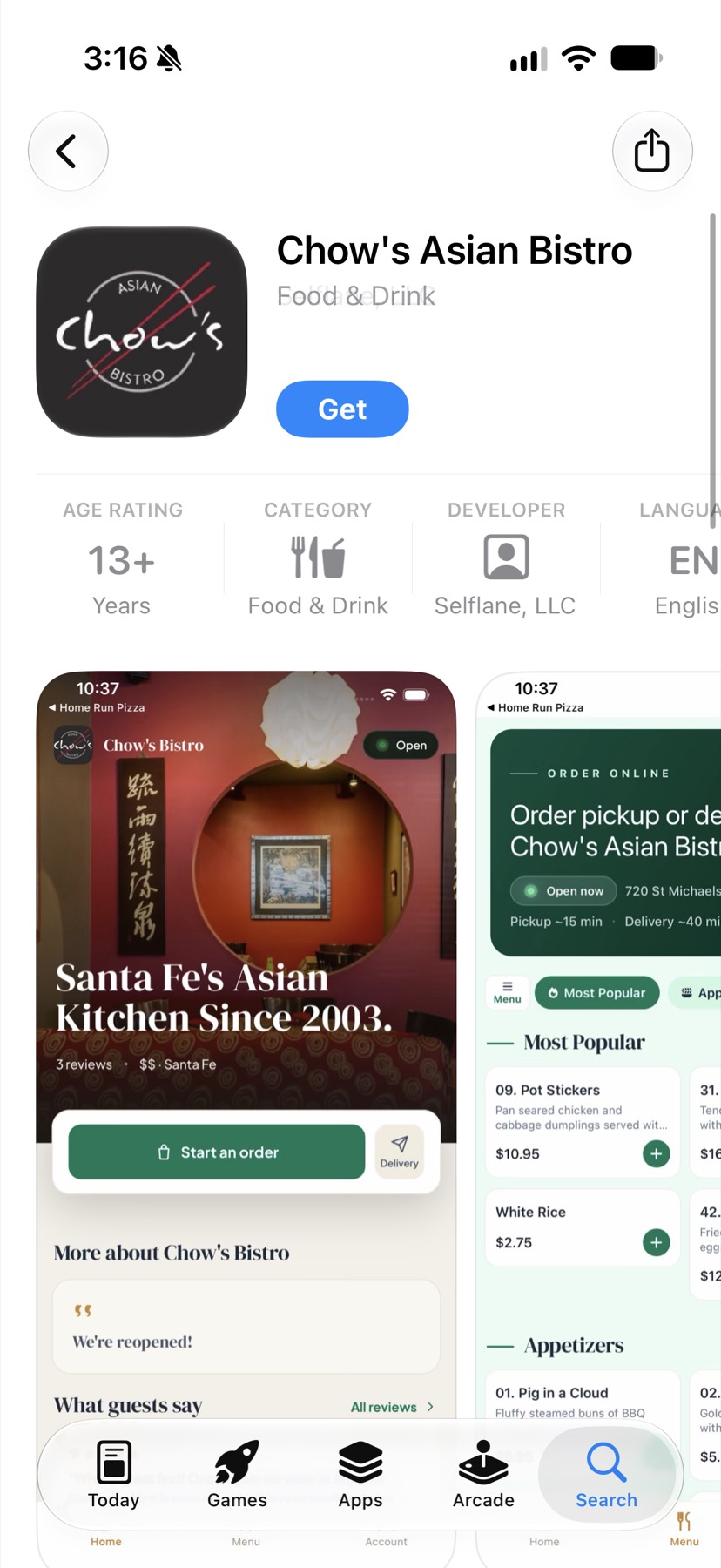
Check the guest experience
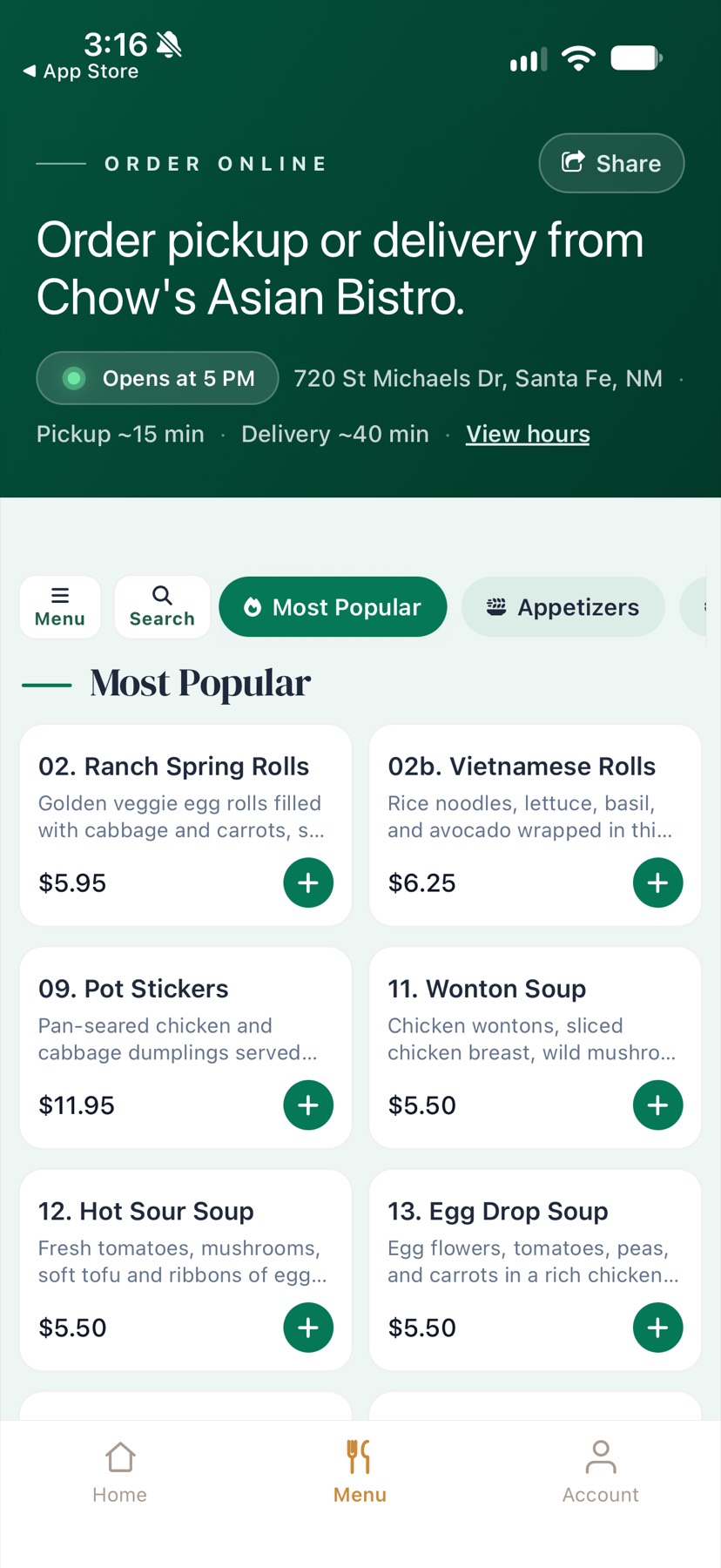
Open Menu to check the restaurant name, opening status, ordering options, categories, dish names, and prices.
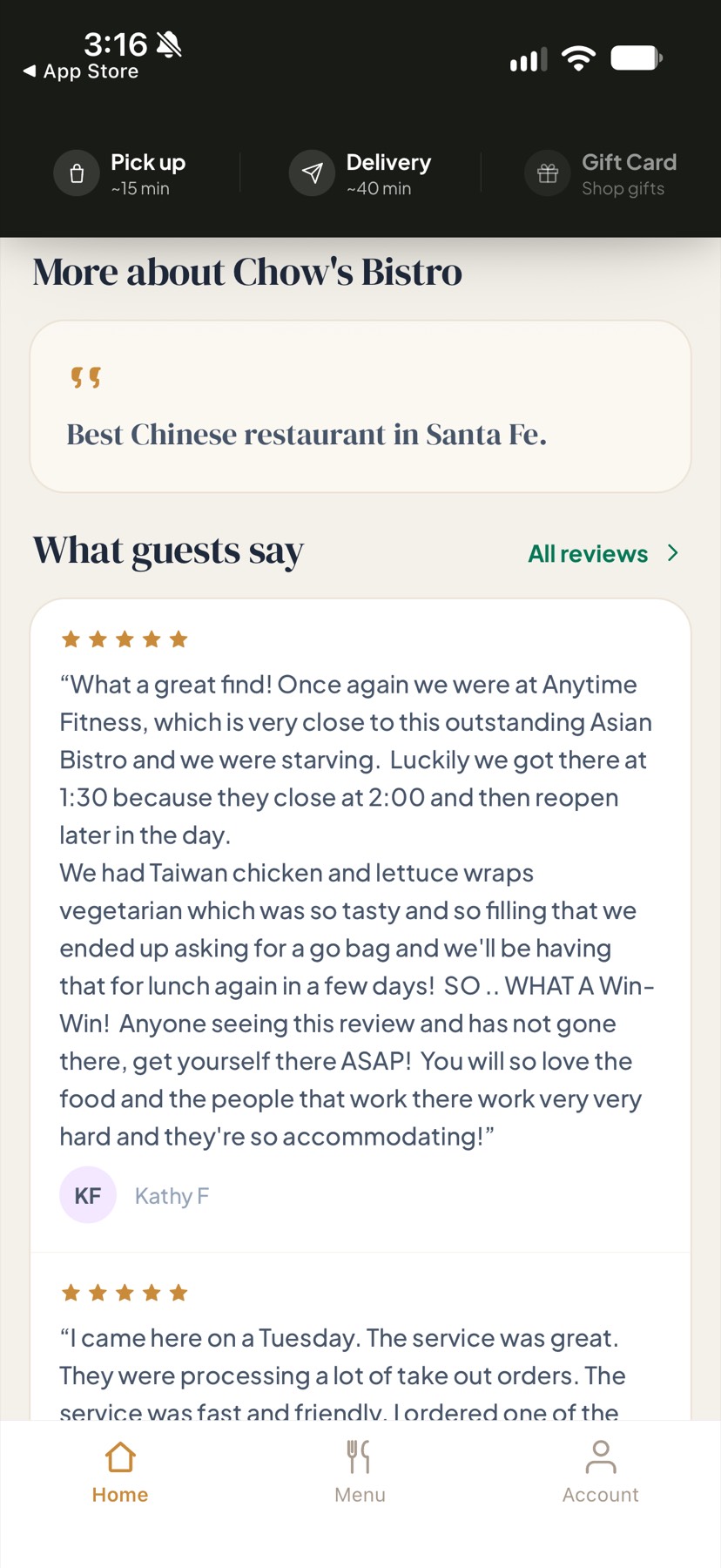
Open Home to review your restaurant’s information and guest reviews. These screenshots show Chow’s Asian Bistro as an example.
Help guests manage notifications
Guests who sign in to your branded app or Selflane Order can receive automatic order notifications. There is nothing for you to send manually.
Automatic order notifications
Notifications cover these events:
- An order is placed or paid.
- Your team confirms the order.
- An order is ready, delivered, or cancelled.
- A Pick Up order switches to delivery.
- Your staff reply in the order conversation.
Tapping a notification opens that order in the app. Guests who order without signing in receive email and text updates instead.
Guest notification settings
- Open
Account>Settings>Notificationsin the app. - Use
Allow notificationsto grant permission on that phone. If permission was blocked, enable it in the phone’s system settings. - Keep
Order updateson to receive the order notifications above.
A guest’s preferences and the phone’s notification permission both affect delivery. Choosing a notification category does not override a blocked system permission.
Notification limits
You cannot send custom messages, promotions, or new-dish announcements as app notifications from the Back Office.
The app also shows preferences for Delivery tracking, Coupons & offers, New menu items, and Birthday wishes. Those preferences do not currently send notifications. Guests still get the delivered notification through Order updates. Do not advertise them as active campaigns.
Use the Member Program for supported customer campaigns.
What if guests cannot find the app?
Check that you shared the download link for your own restaurant. Ask your Selflane representative to confirm availability if the link is missing or the store does not show the app.