Pay Order
Collect payment for an open order, a split check, or a new Quick Service order. Check the balance and any existing payments before charging a card.
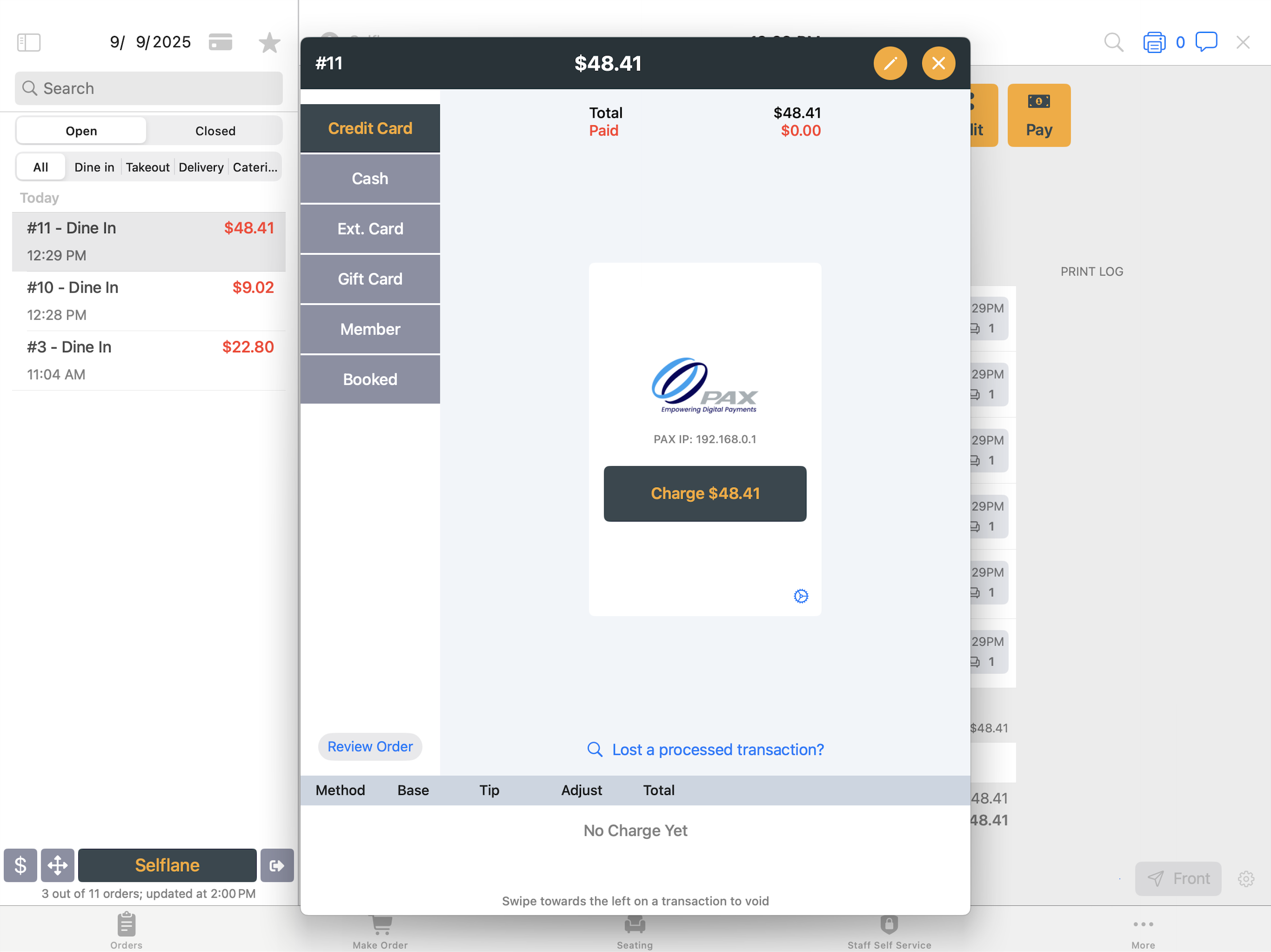
Collect a payment
- Open the order and tap
Pay, or usePay & Sendwhen creating an order. - Check the items, balance, and payments already listed on the order.
- Choose the payment method and follow its prompts. Use
Other TenderfromEditwhen the customer pays only part of the balance with this method. - Wait for the payment result. Complete the tip prompt if one appears.
- For cash, check the change due. Print the receipt or close the payment screen when finished.
For Pay & Send, kitchen printing follows your restaurant’s payment and printing settings. Cash and check payments open the drawer unless automatic opening is turned off.
Prepaid online and kiosk payments do not offer tip adjustment. Receipt and signature printing follow your restaurant’s settings.
Change the order before payment
Tap Edit in the upper-right corner:
Other Tender— enter a partial payment amount, such as $10 cash before paying the balance by card.Add Item/Voucher— add items or a voucher.Apply Discount— change the order discount.Customize Auto Tip— change the automatic tip percentage.
Check the new balance before collecting payment.
If a card is charged but the payment is still saving
In Selflane POS 7.8.0 or later, the POS keeps approved MagTek and Stripe payments and automatically retries saving them to the order.
If you see Card charged. Saving to order — don't charge again., wait for the saved payment to appear. Check the order’s payment list before taking another payment.
If the POS says it could not save the charge and asks you to add it manually, ask a manager to reconcile the existing charge. Do not take a second card payment to replace it.
Stripe asks about an earlier payment
If an earlier card payment is still being saved when you charge with Stripe, the POS warns that the customer’s card already holds it:
Keep itleaves the existing payment in place while saving continues.Cancel it & charge again, if shown, first tries to release the earlier payment. The POS charges again only after confirming that it can do so. It does not appear when the earlier payment cannot be released, such as a MagTek sale.Charge anyway (manager)requires manager approval and can charge the customer twice. Reconcile the earlier payment before using it.
If the earlier payment has already saved, the POS tells you not to charge again. If cancellation fails, check the connection and resolve the earlier payment before continuing.
If another iPad cancels the order
The payment screen closes when the POS receives the cancellation. The POS also checks the order before each card payment. Return to the order list and check its status before continuing.
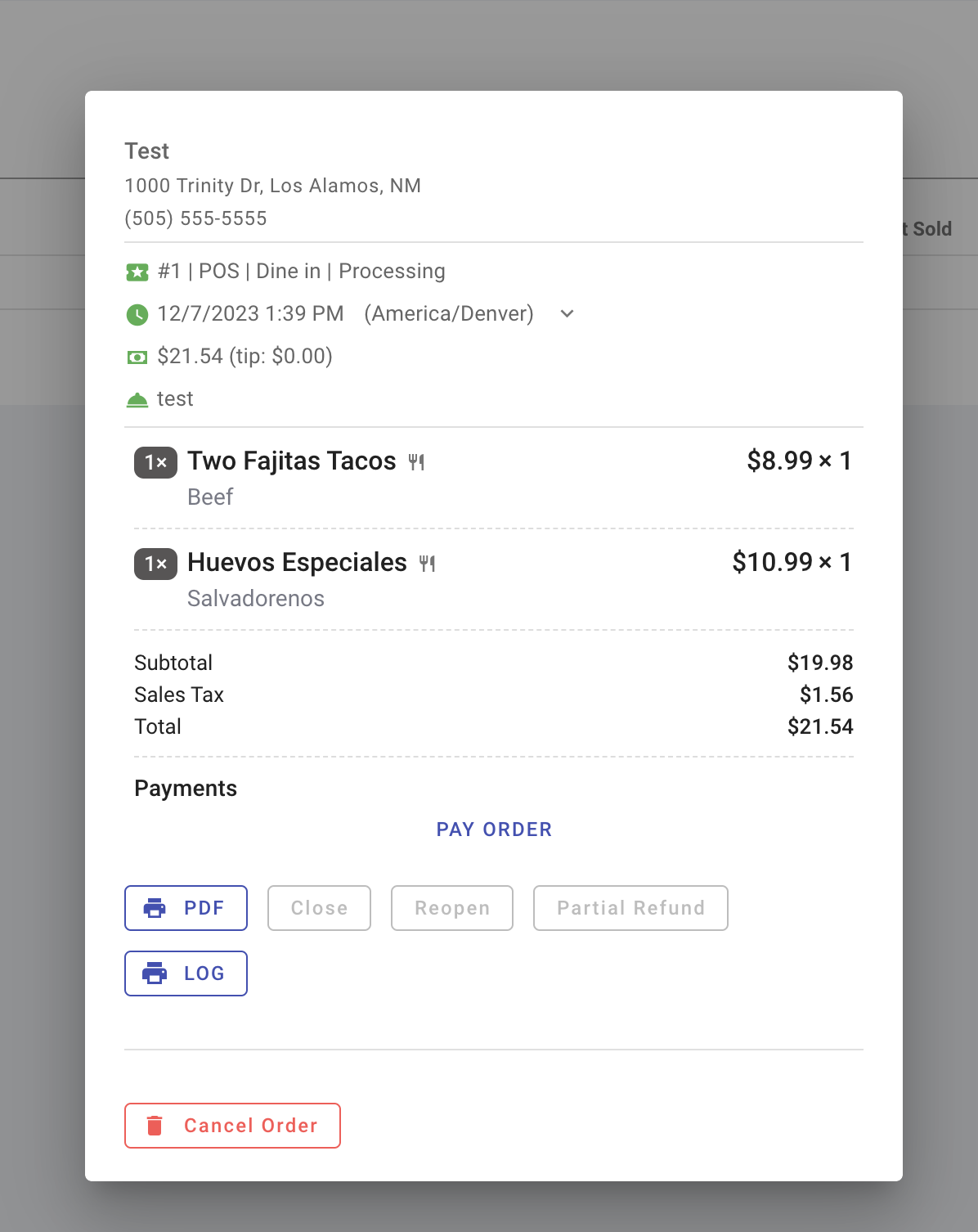
Pay from the Back Office
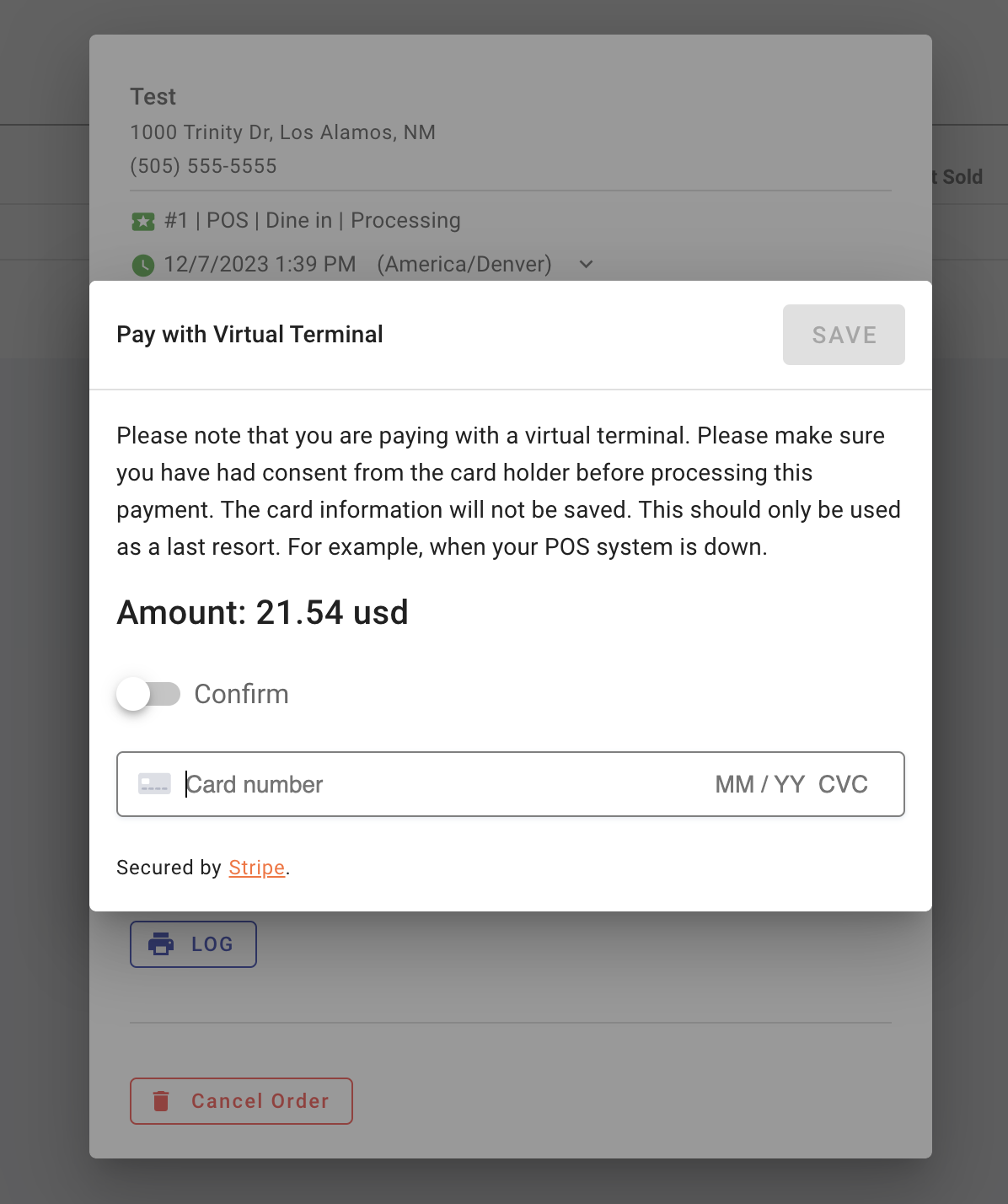
Use the Back Office payment option, sometimes called the virtual terminal, when you cannot take payment at the POS.
- Open the unpaid order in the Back Office.
- Click
Pay Orderand follow the payment prompts. - Confirm that the payment appears on the order before trying another method.
Manually entered card payments have different processing costs and chargeback risks. Use your normal POS reader when it is available.
Related links
- Payment Settings — connect your card reader.
- Split and merge checks
- Void a payment
- Refunds
- Event Ticketing — recover a paid ticket sale without charging again.