Event Ticketing
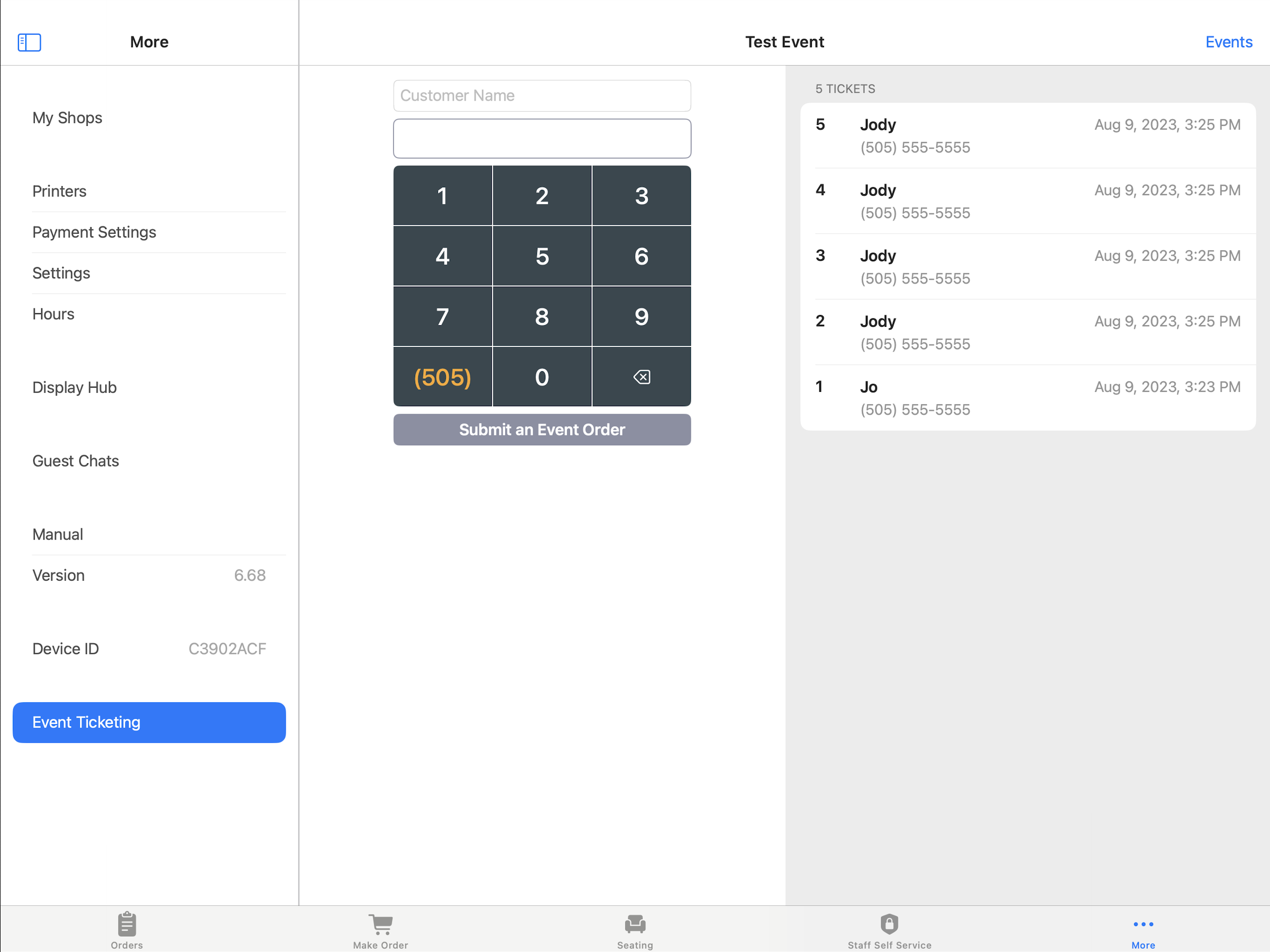
Sell tickets for an event or fundraiser at the counter. Set up the event in the Back Office before selling tickets on the POS.
Sell tickets
- Tap
More>Event Ticketingand open the event. - Enter the customer’s name and phone number.
- Tap
Submit an Event Order. - Choose the ticket quantities on the payment screen and check the total.
- Choose the payment method and collect the full total.
- Wait for the tickets to be created. A text receipt is sent to the customer’s phone.
Ticket quantities are locked while a card is being charged. A single cash or card entry must cover the full total.
If payment succeeds but tickets are not created
Selflane POS 7.8.0 or later keeps the paid order on screen and offers Retry Creating Tickets.
- Check the charged amount shown on screen.
- Tap
Retry Creating Tickets. - Wait for the ticket result. This retries ticket creation without charging the customer again.
Do not start a second sale for the same tickets while the paid order is unresolved.
If the charged amount does not match
The POS shows the amount paid before tip and the order total. It does not create tickets when those amounts disagree. Ask a manager to reconcile the charge.
Before discarding a charge
Discard Charge clears the ticket sale from this screen. The customer stays charged and has no tickets. Discarding does not void or refund the payment.
Get a manager before you tap Discard. The ticket sale has no order, so the POS cannot refund it later. The manager must void or refund the charge with your card processor. In the Stripe Dashboard, the charge is labeled with the event name.