Display Hub
Use Display Hub to turn extra iPads into kitchen, packing, or customer-facing screens. The built-in Kitchen and Kitchen-Prep displays still open in Selflane POS. Since version 7.5.9, the POS may first offer the dedicated Selflane Displays app when you choose either kitchen role. The offer appears once per POS version.
Choose a display
| Display | Who looks at it | What it does |
|---|---|---|
| Kitchen Display | Line cooks | Show digital kitchen tickets in the built-in display or Selflane Displays app. |
| Kitchen-Prep Display | To-go packers | Track packing for every order that still has unpacked dishes, in the built-in display or Selflane Displays app. |
| Customer-Facing Display | The customer at checkout | Shows the order, lets the customer tip and sign on screen. |
| Loyalty Display | The customer at checkout | Lets the customer sign up for the Member Program. |
| Drive-Thru Display | A second staff station | Lets one person take the order and another collect payment, shortening the wait. |
To open Display Hub on any iPad, tap More > Display Hub. If you choose a kitchen role and see “Try the Selflane Displays app”, tap Get Selflane Displays to install the app, or Continue to open the built-in display.
Settings
Station identifier
If you run more than one POS station, give each one a number. The number tags every transaction and shows up in the Overall Report so you can see how each station performed. It also sets the Drive-Thru lane and filters which orders the Drive-Thru Display shows.
Peer Comm. Channel
Two iPads in a Display Hub pairing must use the same business and the same Peer Comm. Channel to find each other on the network.
Kitchen Display
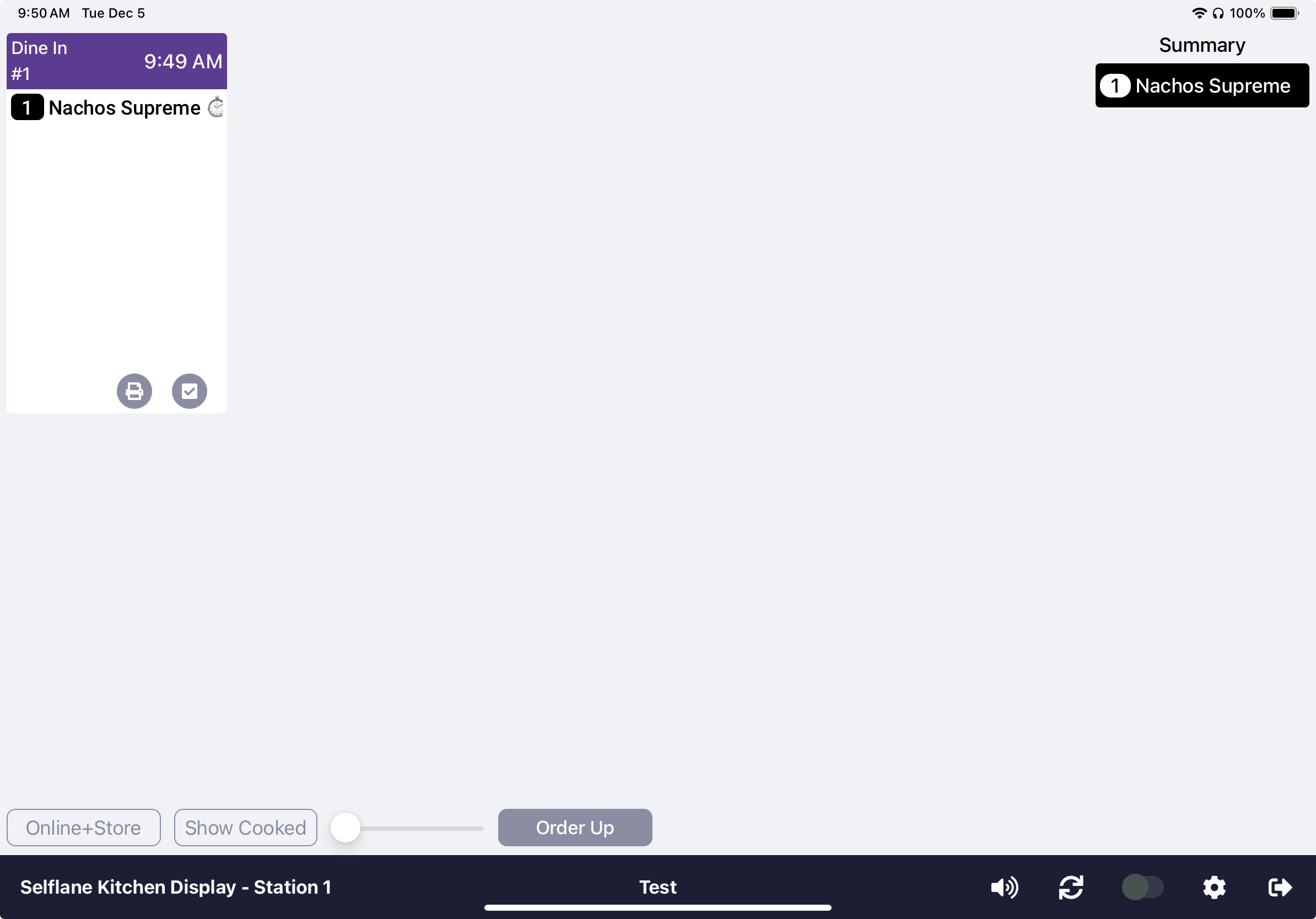
The built-in Kitchen Display replaces or supplements the kitchen printer. Orders appear as digital tickets that the line marks as cooked, so the kitchen sees the queue in real time. For the standalone app on iOS and Android, see Selflane Displays.
Set up a Kitchen Display
- On the iPad you’ll use as the display, tap
More>Display Hub. - Tap
Kitchen Display. If the Selflane Displays offer appears, tapContinue. - Tap the gear icon and choose the print targets this display covers:
Kitchen,Kitchen 2,Kitchen 3,Kitchen 4, andBar. One display can cover several targets.Kitchen,Kitchen 2, andKitchen 3are selected by default.
Day-to-day controls
Above the tickets:
Online+StoreorOnline Only- choose which orders to show.Show CookedorHide Cooked- show or hide tickets already marked done.- Width slider - change the ticket width.
Order Up- mark the dishes you selected as cooked. The button shows how many dishes are selected.
In the bottom bar:
- Sound icon - white means sound is on; red means muted.
- Sync icon - reload the latest orders if anything looks out of sync.
- Finished-orders switch - show or hide finished orders.
- Gear icon - open the display settings.
- Exit icon - leave the display and return to the POS.
Settings
Show Orders From- show orders fromAll Stationsor one station only.Show Summary- turn the summary view on or off.Only Show Online Orders- hide in-store orders.- Print targets - change which kitchen stations feed this display.
Refresh All Orders- reload every order on the display.
Kitchen-Prep Display
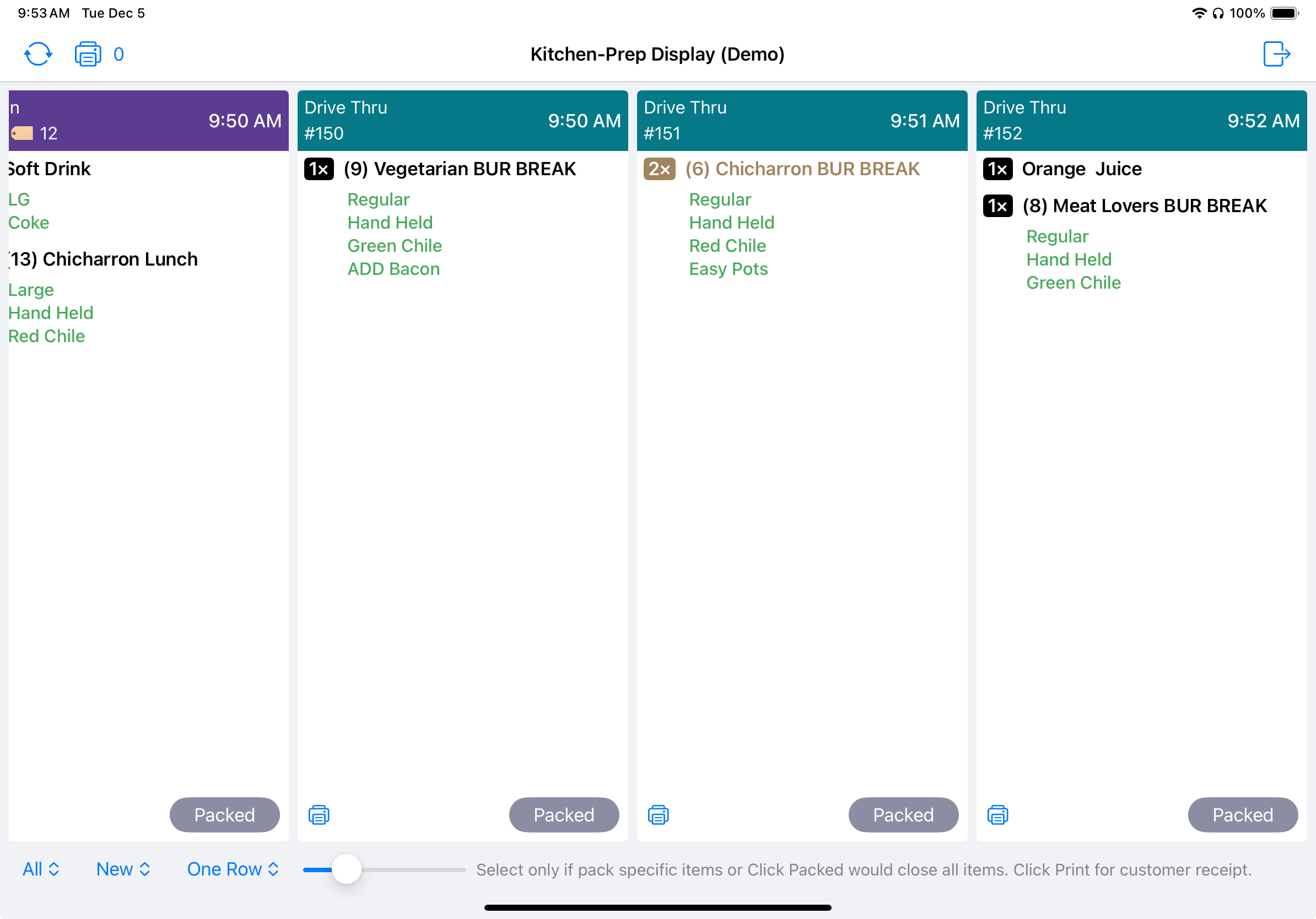
Use the Kitchen-Prep Display to pack orders faster. It lists every order that still has dishes to pack, including Dine In orders.
Tags such as Running Late, Unpaid, and Future Order flag orders that need attention.
- Tap
More>Display Hub. - Tap
Kitchen-Prep Display. If the Selflane Displays offer appears, tapContinue. - Tap
Packedon an order when it is bagged.
Use the filters at the top to choose All or Online Only orders, New or Packed orders, and One Row or Two Rows.
Customer-Facing Display
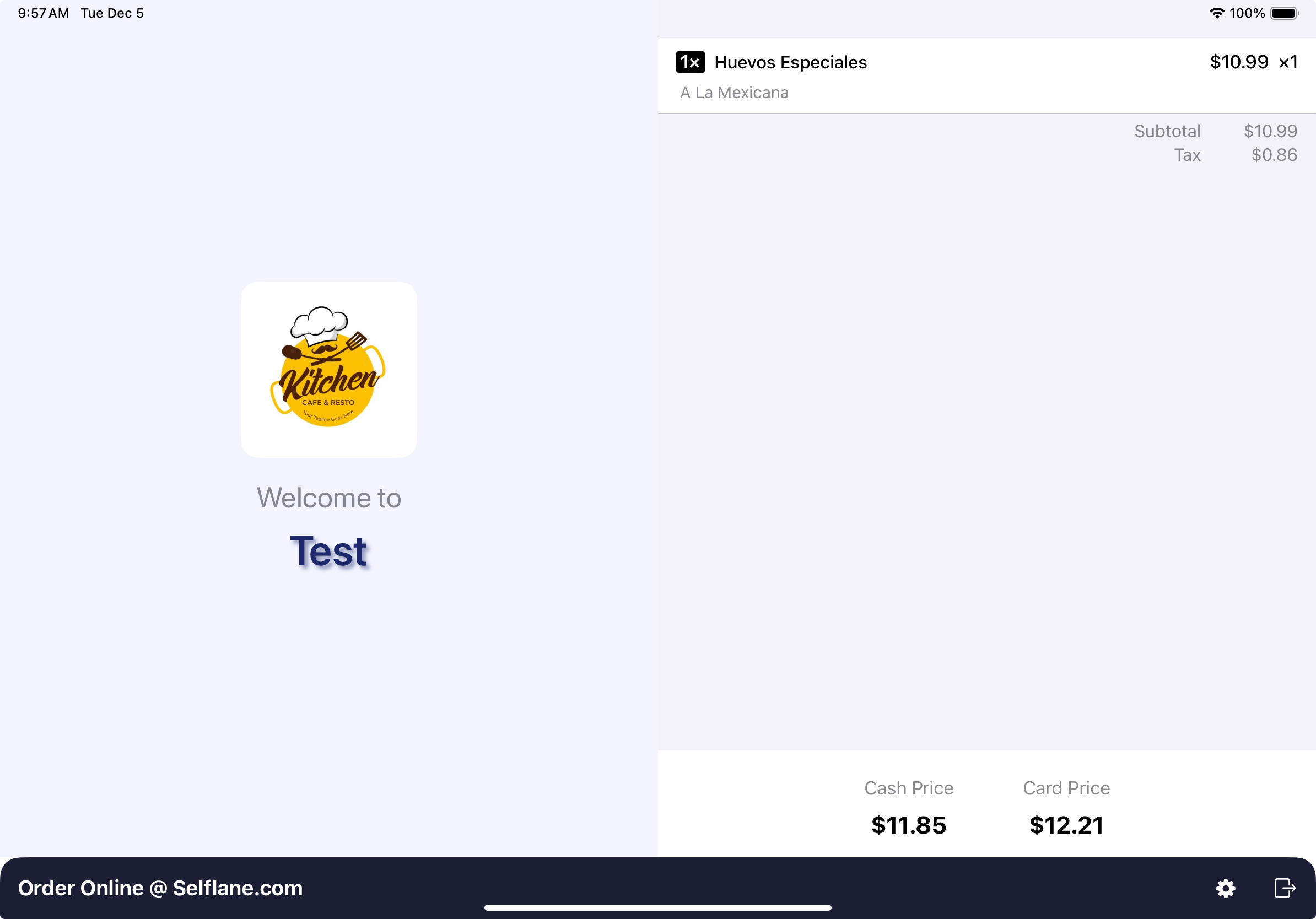
Customer-Facing Display: Gives the customer a real time view of the order entered and the ability to tip and sign for a credit card transaction.
Ensure Station and Peer comm Channel are set to the same station the iPad with which it is associated.
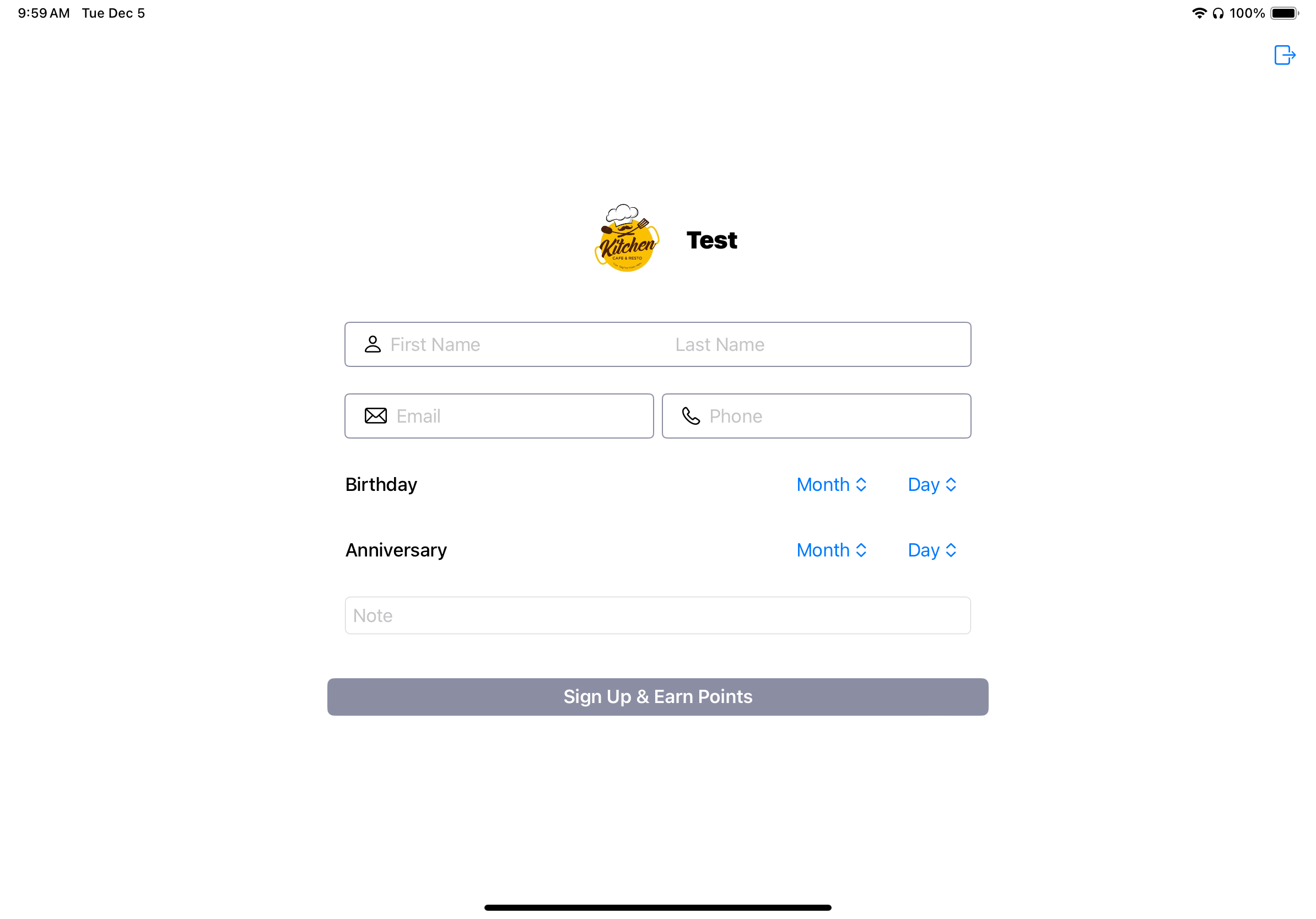
Loyalty Display
Loyalty Display: Gives the customer the ability to sign up for the Member Program.
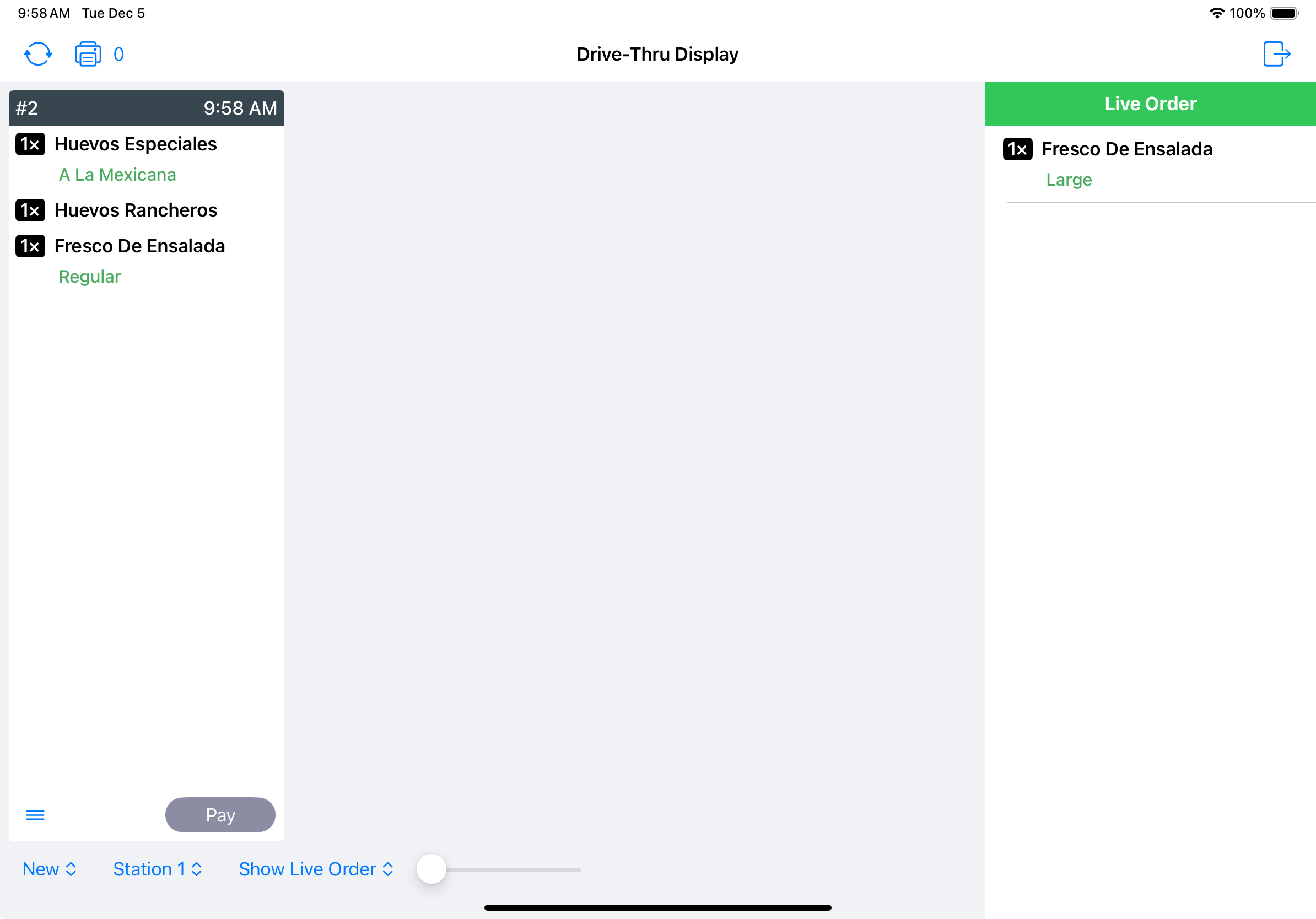
Drive-Thru Display
Drive-Thru Display: Gives the restaurant the ability to have one employee enter the order and another collect payment from the customer. This can improve wait times for your customers.
Ensure Station and peer channel are set to the same station the iPad the orders are entered on.